

As noted previously, user passwords are created automatically when a library system is first set up. These automatically generated passwords are based on a pattern. Librarians sometimes want to change the passwords, either for individual users or for multiple users. Both of these functions can be accessed from Users > Change User Passwords.
Read the Customer Help Guide on Changing User Passwords.
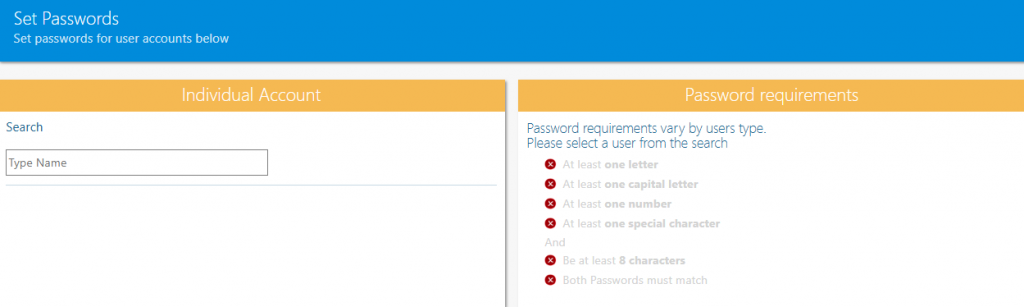
Enter the name of the student and select them from the drop down list.
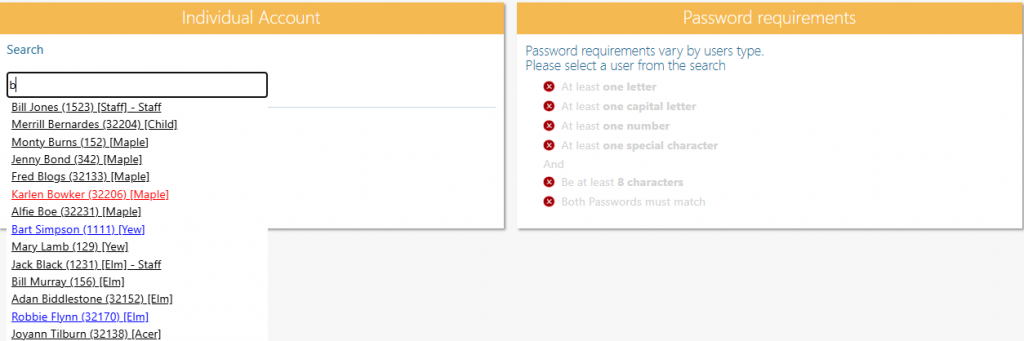
The details of the student are displayed for confirmation purposes.
Enter the new password details and click “Change Password”.
To edit many passwords simultaneously first create a CSV file with the relevant information.
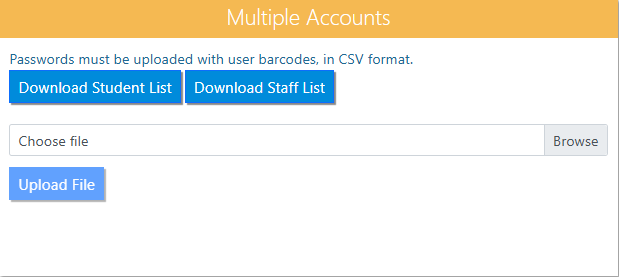
Click “Choose file”, locate the CSV file and upload.
Tasks
- Change the password of an individual library user
- Change two or more passwords for students using the Multiple Accounts section
- Reset the passwords of these users to the default