

The librarian can assign students to different registration groups from the Manage Registration Groups page.
Read the Customer Help Guide on Managing Registration Groups.
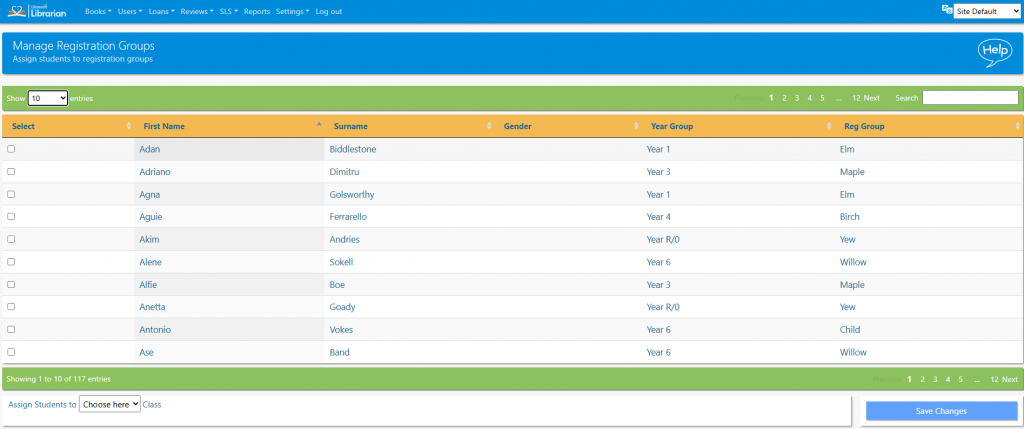
The list can be sorted by clicking on the column headings and searched by typing in the search box.
To move student(s) to a new registration group select the checkbox for the relevant student(s) and then select the new registration group from the dropdown box at the bottom of the list and click the Save Changes button.
This is usually taken care of by the SMaRT system, so users will rarely need to use this feature.
Tasks
- Re-assign three students to your new registration group (the one you created on the previous lesson)
- Search for a specific student and re-assign them to the new registration group
- Go back to Add/Manage Registration Groups. Are you able to remove the new registration group you created? What might you need to do first?
- Remove the registration group once you have figured out what you’ll need to do first!