

To approve many reviews quickly go to the Approve Reviews page in the Reviews Menu.
Read the Customer Help Guides on Viewing, Approving or Rejecting Pending Book Reviews.
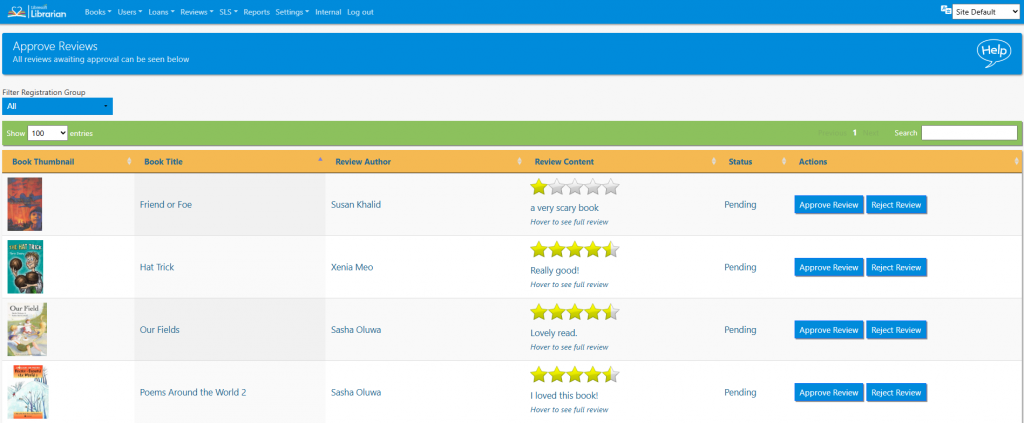
The list can be sorted by clicking on the column headings, filtered by registration group or searched in the normal way.
To approve a review and make it visible to all users click the Approve Review button.
To reject a review click the Reject Review button and select a reason for the rejection. Comments can also be added.
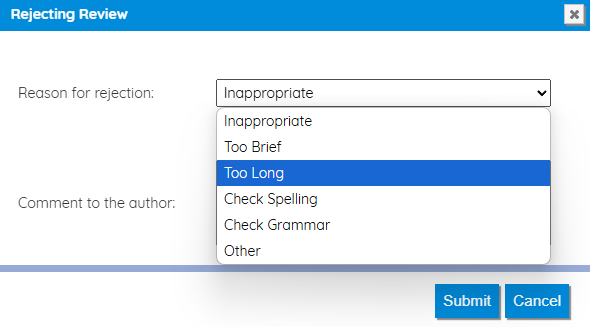
The author of the review will see the rejection and resubmit the review.

Tasks
- Review reviews waiting to be approved. The reviews you left as a student should be here
- Of the reviews you created, approve one of them. Reject one of them and include the reason why the review is rejected
- Log in as the student you logged in as previously. What do your reviews look like now?
- Write a review with a rude word in it to verify the filter is working
- Reject the rude review
- Now you need to work out how to eliminate it from the library system