

If the list of pre-made reports does not contain a suitable report, it is possible to create custom reports using the Design a Report tool. The reports tool is complex and pulls data from multiple sources. For these reasons, the fields and filters applied to reports need careful review as they can dramatically affect the results generated! This may need some practice, and trial and error to become proficient.
Read the Customer Help Guide on Reports.
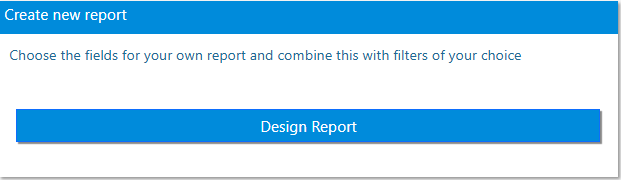
Go to Design a Report in the Reports menu. Select a report template or Design Your Own Report to start from scratch.
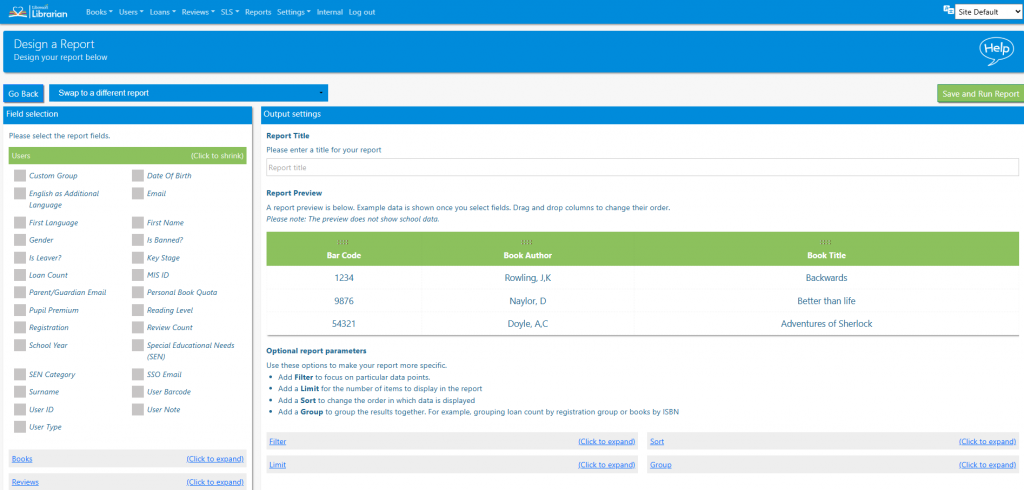
- To begin building the report, expand the field menus on the left side and select the desired fields.
- The order of the fields can be changed by dragging them to the desired location in the Preview window.
- Enter a report title, it should describe the contents of the report.
- Add Filters and Sorting if needed. Filters contain different options depending on the type of field they are being applied to and custom filters can be created.
- Add a limit (maximum number of results) if necessary and click the Finish button.
- The results of the report will be displayed in the normal way and the report is added to the list of pre-made reports where it can be re-used, edited or deleted.
If the report is blank it usually means that the structure of the report is invalid or not logical. Support is available if the school librarian is really struggling.
NOTE! We STRONGLY recommend that trainers take the time to familiarise themselves with this aspect of Libresoft Librarian. There is no substitute for practise!
Tasks
- Build the report that is used as an example in the Help Guide
- Design your own report and try to verify that it is accurate
- Favourite a report
- Remove a report