

Librarians sometimes create group sets of books. These may be organised in connection with a particular theme or for a particular group, such as Early Readers. It is possible to assign a single barcode to this set of books so they can be loaned all at once.
Read the Customer Help Guides on Group Sets.
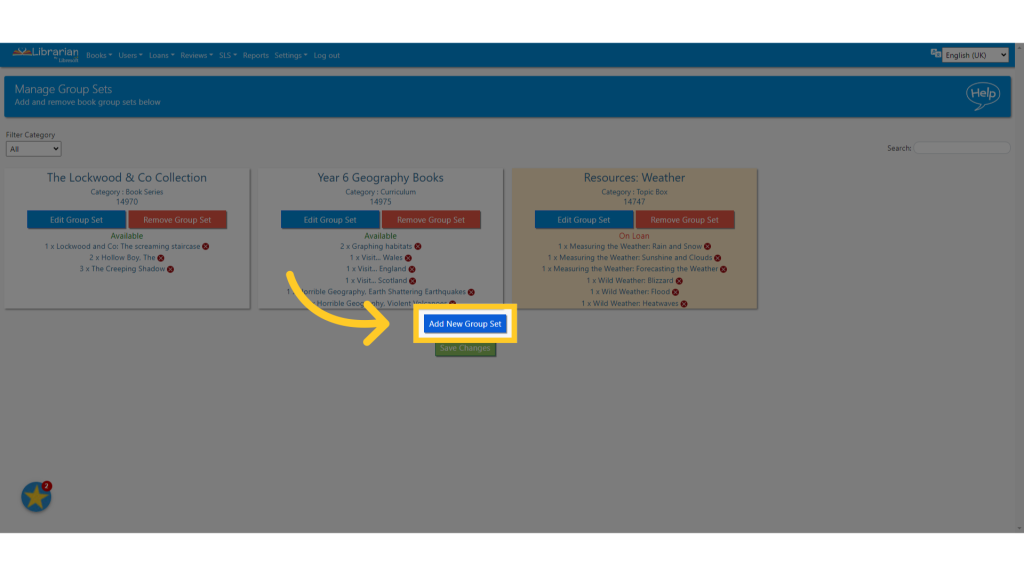
To add a new Group Set click Add New Group Set, enter a name and barcode number for your Group Set. Any number can be entered but the system will reject any pre-existing numbers.
Group set categories help you organise your group sets. If you love using group sets, you may find this feature useful! Group set category is optional, so feel free to leave this field blank or edit it later. If you’re adding the category now you can select from a dropdown, which shows the categories you have already created. Alternatively, select ‘Other’ and type in a completely new category. Be careful when typing categories as these cannot currently be edited once added.
To add books to a Group Set, if the physical books are to hand, the easiest option is to simply add the book barcodes to the group set. Start by clicking the Edit Group Set button.
- Scan or manually add the book barcodes. They will appear in a list on the popup.
- When you have finished adding books, click the Save Changes button.
- Your new group set is created and ready to be loaned.
To update the name of an existing Group Set, click Edit Group Set and enter a new name in the name box and click Save Changes.
To remove books from a group set click remove book next to the book in Edit Group Set, or go to Edit This Copy in the Catalogue > Action menu.
Add books on the Catalogue page
You can also add books to group sets straight from the Catalogue. This may be a better option if you don’t have the physical books to hand. Start by going to the Catalogue page in the Books menu.
Find the books you want to add to the group set.
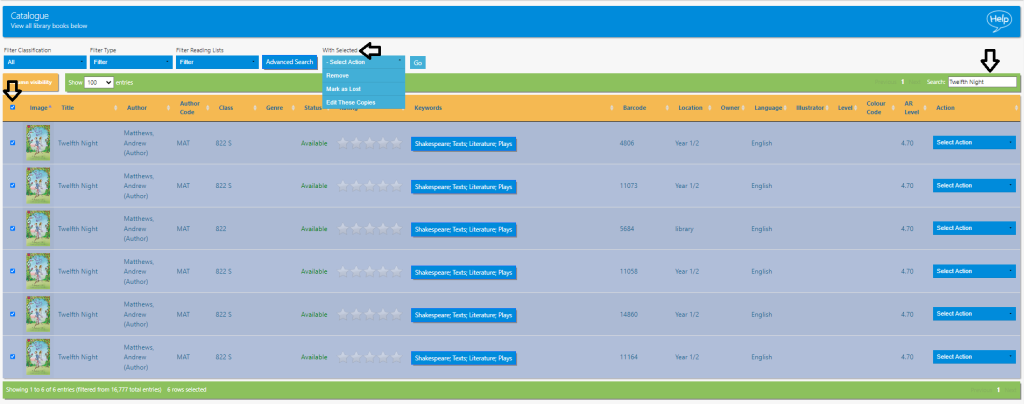
- Tick against the books (or in the column heading bar to select all books on the page) to select them.
- Once selected, a new With Selected menu appears near the top of the page.
- In the With Selected menu, select Edit These Copies from the dropdown and click Go.
- The system displays the Edit These Copies popup.
- Under Group Set, select the relevant group set from the dropdown list.
- Click the Submit button to save the change.
- The system indicates the books have been added to the group set.
Tasks
- Create a new group set and assign a barcode to it
- Update a name of an existing group set
- Update the barcode of an existing group set. What happens if you try to assign a barcode that is already assigned to a book?
- Assign two books to a group set
- Assign a few books to a completely new group set
- Remove some books from a group set
- Loan a group set to a library user. How does this then appear on the Current Loans page?
- Try loaning one book that is in a group set to a library user. What happens?