

A Stock Check can be performed at any time. It should be noted that activating a Stock Check will “close” the library, as the loaning and returning features are deactivated when a Stock Check is underway.
Read the Customer Help Guide on running a Stock Check.
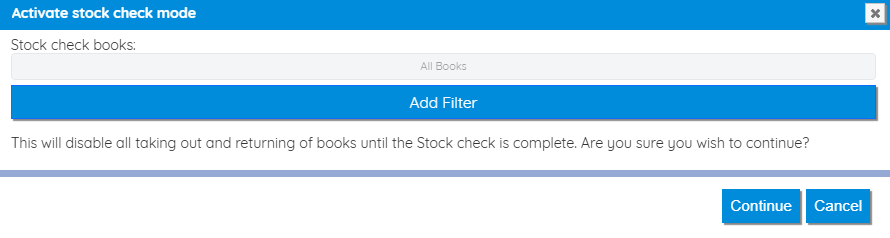
To activate a Stock Check go to Stock Check in the Books menu and click Begin Stock Check

If you are short on time or don’t need to stock check your entire Catalogue, limit the stock check to a specific location, owner, genre or classification
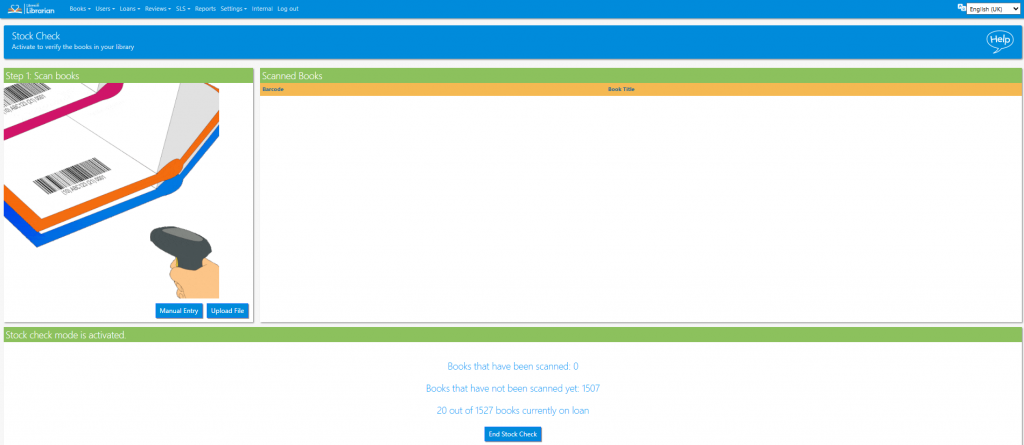
Scanned books are logged as they are scanned so there is no way to lose progress. A stock check can be interrupted and returned to at any time. Logging out also has no effect. The system will remain in Stock Check mode until it is deactivated.
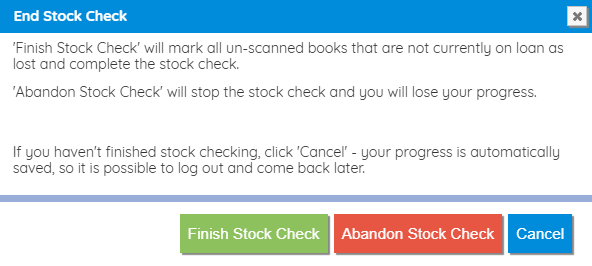
To end the Stock Check click the End Stock Check button. There are three options:
- Finish Stock Check – all un-scanned books are sent to the Lost / Removed List, the system returns to normal mode
- Abandon Stock Check – All scans are discarded and the the system returns to normal mode
- Cancel – return to Stock Check
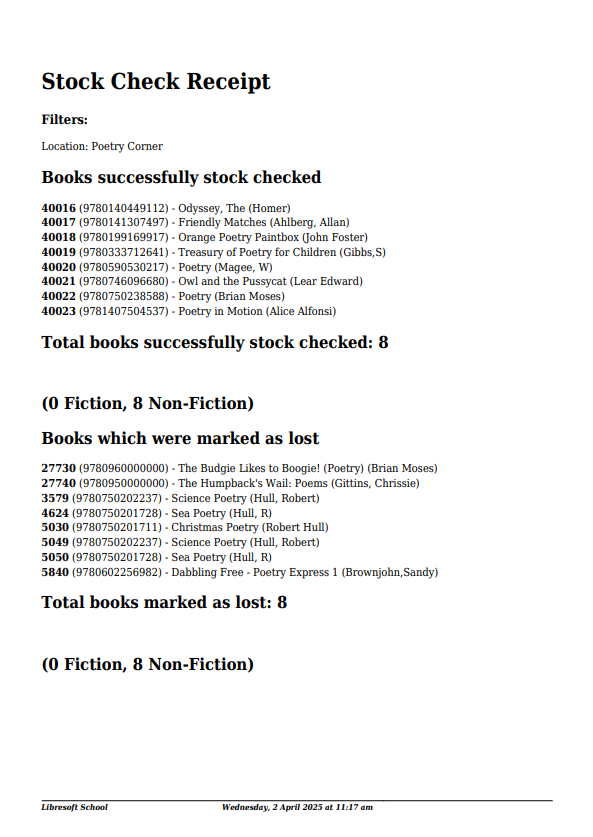
Completion of a Stock Check will create a Stock Check Log for future reference. To view logs go to Stock Check Logs from the Books menu.
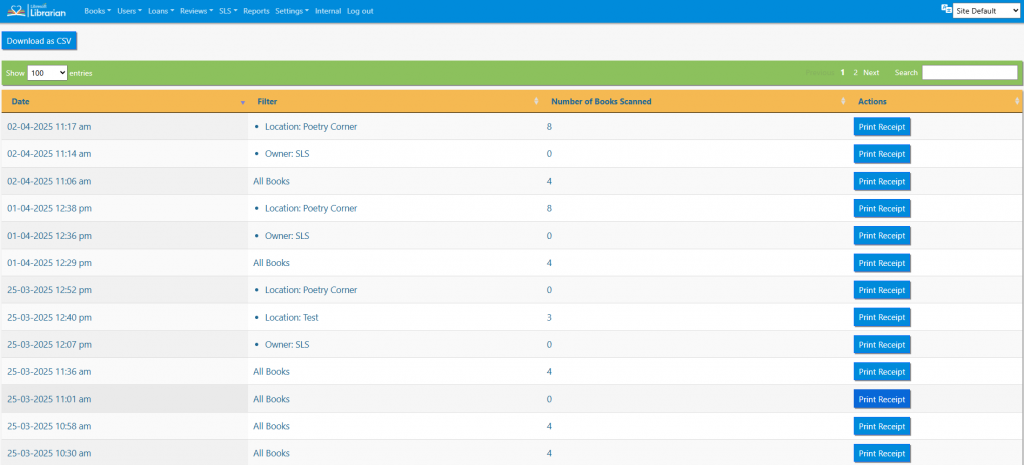
A receipt can be printed if desired.
Tasks
- Move a few books to a new location called Test
- Activate a stock check mode by Location = Test. Verify that the loaning book features are disabled. Important: You’ll also want to make sure you do actually have books with the location ‘Test’ before you start!
- Scan/type in barcodes of books that are assigned this particular Location in the Catalogue. Don’t scan one of these books. How fast can you do it?
- End the Stock Check PRESS ABANDON!!
- What happened to the books that you didn’t scan?