

To view all students’ details select “Student Details” from the “Users” menu.
Read the Customer Help Guide on Student Details. Then read the guide on Student Librarians.
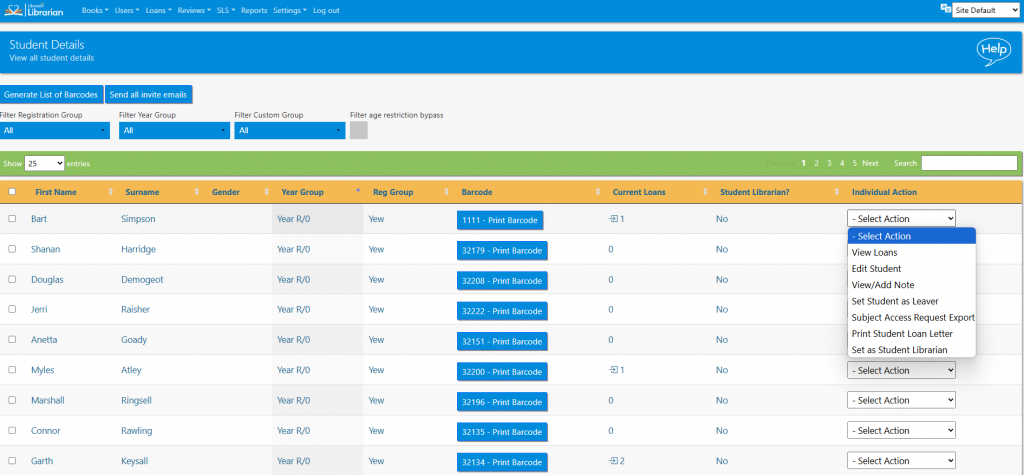
The list can be sorted by clicking the column headers and can be filtered by registration group, year group and custom group. The list can also be searched in the normal way.
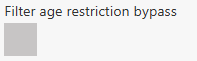
Some books have an age restriction on them. Some students can be set to bypass this feature. To display only those students that can bypass age restrictions select the Filter age restriction bypass box.
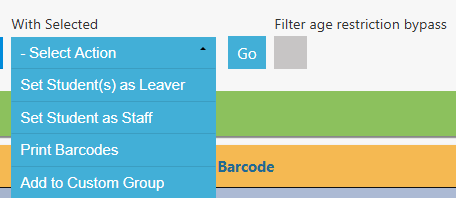
Certain bulk actions can be taken by selecting multiple students and then selecting from the drop-down menu that appears at the top of the list.
The following actions are accessible for each student from the Select Actions menu…
- View Loans – view a student’s current and past loans
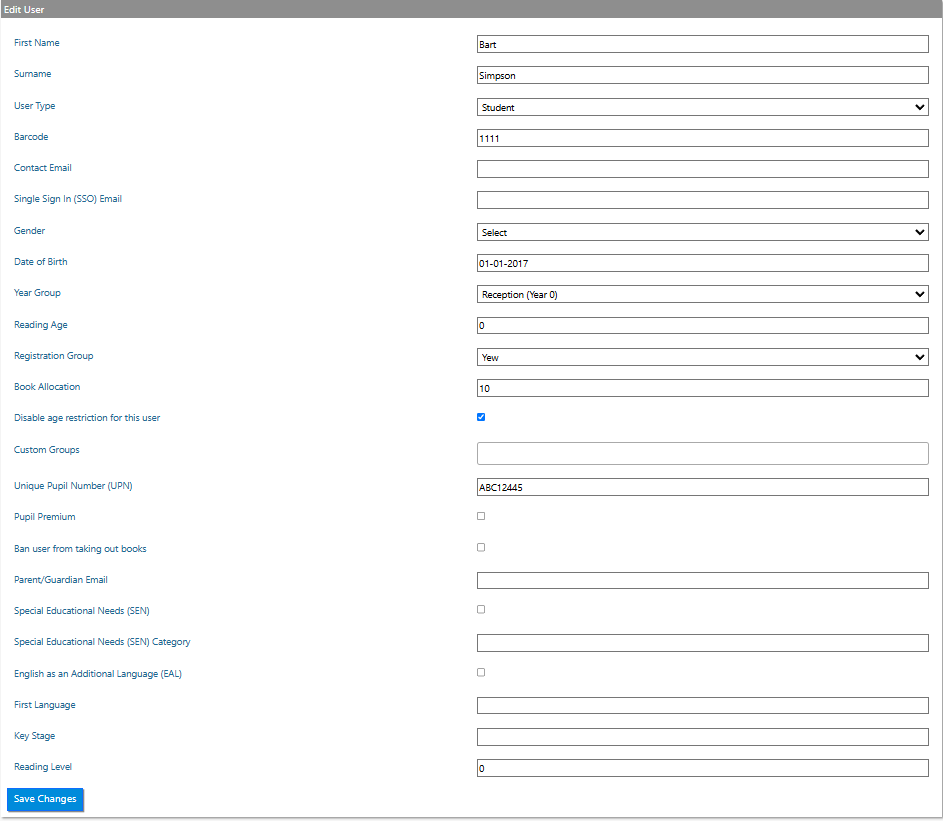
- Edit Student – the following data can be added or amended depending on what has been included in the data sharing agreement:
- User Type – student, teacher or class
- Barcode
- Contact Email (Librarian+ or email module)
- SSO Email (Only when a school uses Google or Microsoft SSO)
- UPN – Unique Pupil Number, sometimes referred to as User ID. This is used as a unique identifier
- First Name
- Surname
- Gender
- DOB
- Year Group – the year the student is currently in
- Reading Age
- Reg Group – the registration group of the student
- Book Allocation – the number of books the student is allowed on loan concurrently, can be unique for each student
- Disable Age Restriction for this user? – age restriction bypass
- Custom Groups – can be added to groups or removed from groups here
- Pupil Premium
- Ban this user
- Parent/Guardian email (Librarian+ or email module)
- Special Educational Needs (SEN)
- Special Educational Needs (SEN) Category
- English as an Additional Language (EAL)
- First Language
- Key Stage
- Reading Level
- Profile picture – can be edited here (Librarian+ only)
- View / Add note – this feature allows notes to be added to a student’s profile
- Fines and Payments – fines for overdue and lost books can be managed here Librarian + only.
- Remove Student – sends the student to the Leavers List. They can be restored at any time
- Set as Student Librarian – setting a student as a Student Librarian affords them the following extra features if they were to log in:
- Add books
- View others loans
Tasks
- Filter the list to only show the Age Restriction bypass student from one registration group
- Add a note for one student
- Edit a student to increase their reading age and book allocation
- Print the barcode for a single student
- Filter the list by registration and then print the barcodes for that registration group
- Set four or five students as leavers in one transaction
- Set two students as staff in one transaction
- Add one student to an existing custom group
- Add multiple students to a new custom group in one transaction
- Ban one student from using the library! Test what happens when you try to loan a book to this student
- Set a student as a librarian
- Log into the system as both a student and a student librarian, and explore what you can do (you’ll also find a Help Guide).