

Every published book has an ISBN number/barcode. While they may look similar, internal book barcodes are different from ISBNs. While ISBNs identify published books, book barcodes identify individual copies of those books. Librarians can print barcodes directly from their library system.
Read the Customer Help Guide on Printing Book Barcodes.
Choose the desired print options
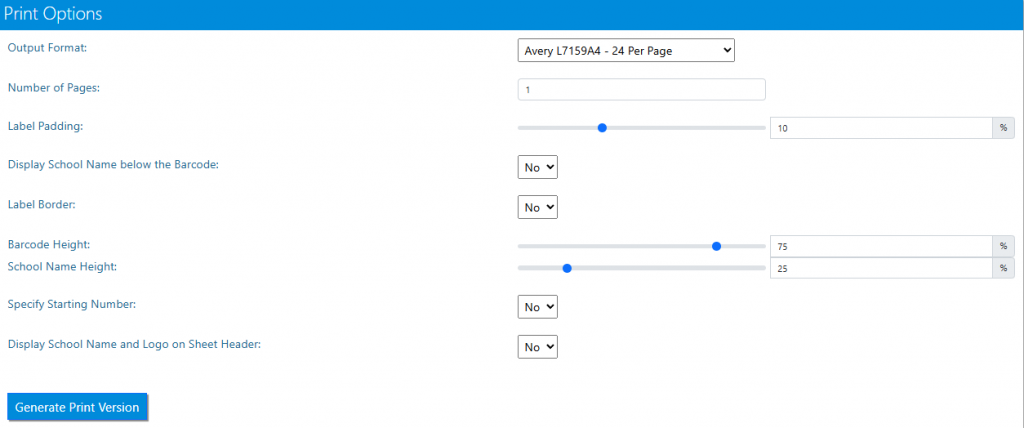
- Output Format – Avery sticker sheets are recommended
- Number of pages – choose how many pages of barcodes to print
- Label Padding – choose how much gap is between each label
- Display School Name – choose to add the school name to each barcode
- Label Border – adds a border to each label
- Specify Starting Number – the barcodes will begin at the number specified
- Display School Names and Logo on Sheet Header – adds details to the sticker sheet
- Potential errors
- Shiny stickers scan less well and can smudge. To be avoided
- If school has old scanner they may have problems
- Print preview doesn’t reflect chosen settings until the OK button is clicked on the pop up message
- The system only knows about barcodes that are in use, it does not know about barcodes that have been printed but not scanned, therefore use up barcode labels before printing more
Tasks
- Print 65 barcodes on one sheet. Note the numbers that are automatically generated
- Start the barcodes at 10,000 and display the School name below the barcode. Note the difference in the numbers that are generated
- Print some barcodes that are as large as you can make them