

Initially, when librarians set library users as leavers from the Student Details or Staff Details screens, these users stay on the system and appear on the Leaver Details screen. Leavers also appear here when they are removed in bulk, such as when the librarian runs the Student Matching and Roll-up Tool (SMaRT – more on that later!)
Read the Customer Help Guide on Leaver Details.
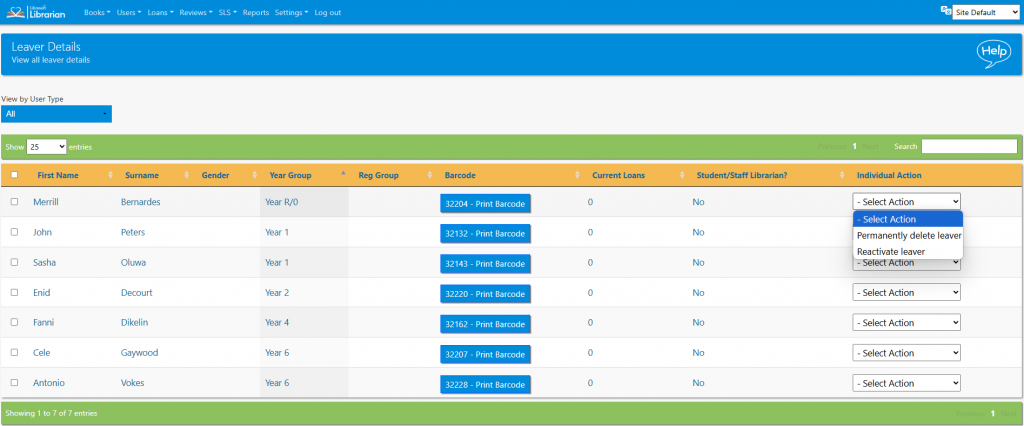
The list can be sorted by clicking the column headers and can be filtered by user type. The list can also be searched in the normal way.
The following actions are available from the Actions menu…
- Permanently delete leaver – no really, completely gone. The librarian will have to re-enter their log in details as a safety measure
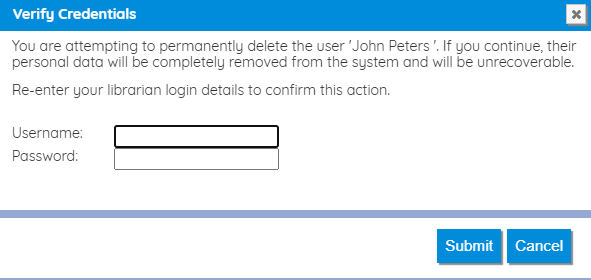
- Reactivate leaver – return the user to the system
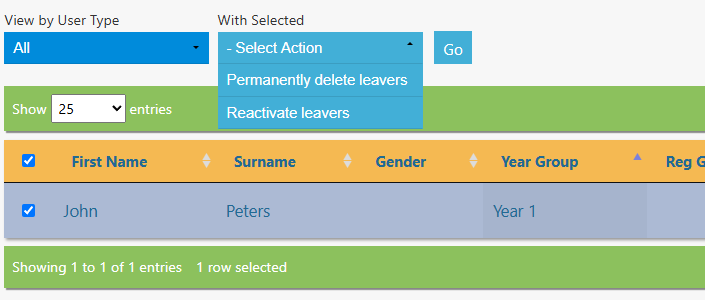
If multiple users are selected by selecting the checkboxes on the left of the list the Bulk Actions “With Selected:” menu will above the list…
- Permanently delete leavers
- Reactivate leavers
Tasks
- Reactivate a single library user
- Reactivate multiple leavers in one transaction
- Filter the list to show only staff library users