

Librarians can add library users to the system individually or in bulk using the Student Matching and Roll-up Tool (SMaRT). Both of these functions are accessed from the Add/Manage Users page.
Read the Customer Help Guide on Adding/Managing Users.
This video will demonstrate how to use the SMaRT system:
Single users can be added with the Add New User box.
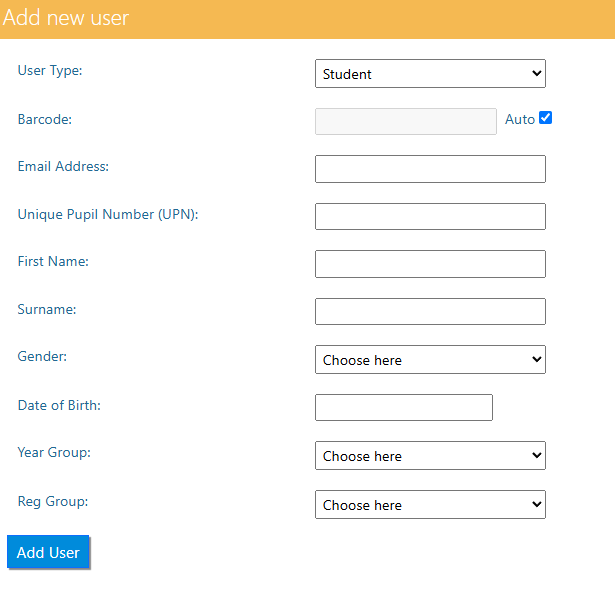
Enter the correct data into the fields:
- User Type – student, teacher or class
- UPN – Unique Pupil Number, sometimes referred to as User ID. This is used as a unique identifier
- First Name
- Surname
- Gender
- DOB
- Year Group – the year the student is currently in
- Reg Group – the registration group of the student
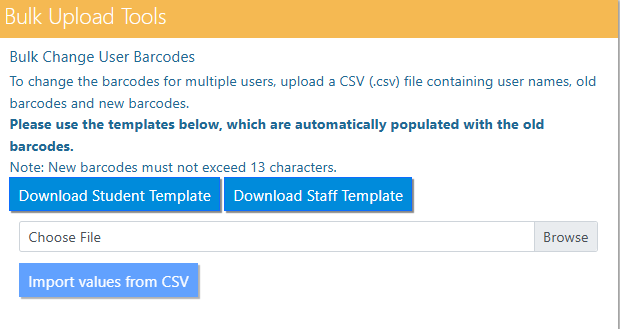
If the library system is totally empty then it may be easier to upload a list of students and their details from a pre-existing CSV file:
Leaver data can be completely anonymised with the Permanently Remove Leaver Data feature:
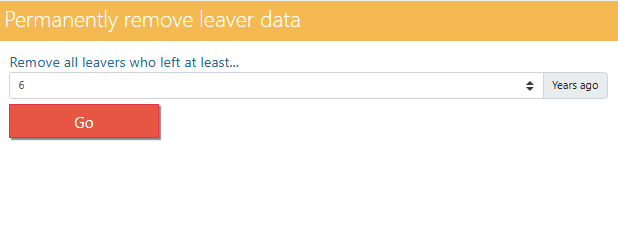
CAUTION – removed data cannot be recovered.
Tasks
- Add an individual student to the system
- Add an individual staff member to the system
- Add a class user to the system. Where does this appear on the system after you have added it?
- Locate a library user that you have just added and remove them