

Library data can sometimes become untidy over time. For example, multiple librarians may add author titles in different ways, so these then look inconsistent in the system. Or someone may have added a genre that contains a spelling error. Librarians may also want to make bulk changes to data. For example, moving all the books from one location to another location in the library. The Data Clean Up Tools can be used to correct errors or make bulk changes.
Read the Customer Help Guide on using Data Clean Up Tools.
Go to Data Clean Up Tool in the Librarian Actions menu to use the Data Clean Up Tool to correct multiple errors in the Catalogue.
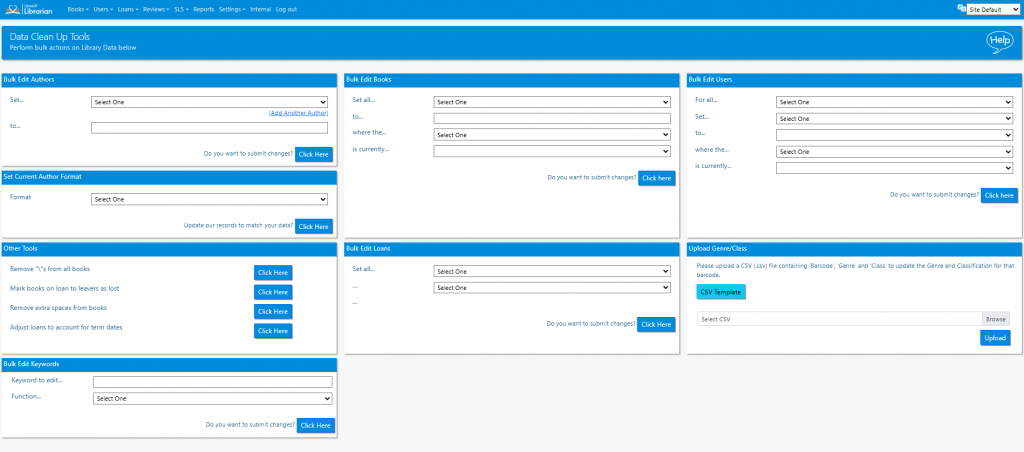
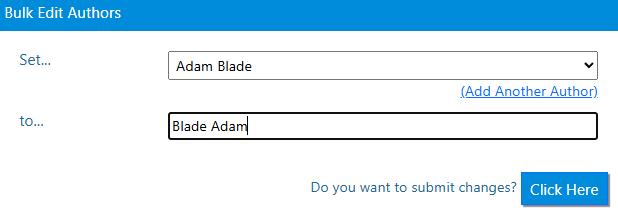
To correct author names:
- Select the author from the drop down list, Add Another Author if consolidation is required
- Enter the new author name and submit the changes
- All instances of the author name(s) throughout the Catalogue will be changed
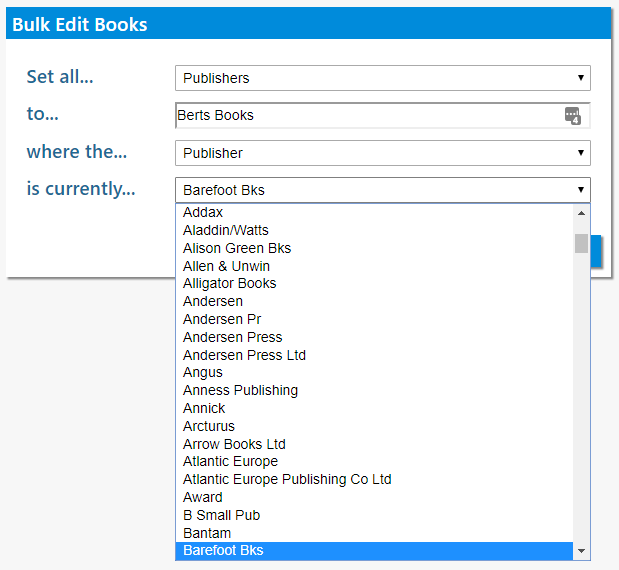
To bulk edit book details use the Bulk Edit Books section:
- Select the field to be altered
- Enter the new value for that field
- Select which books to apply the changes to by
- selecting the field
- selecting the value from the drop down list of possibilities already in the Catalogue
- For example: Set all… Publishers, to… Berts Books, where the… Publisher, is currently… Barefoot Bks
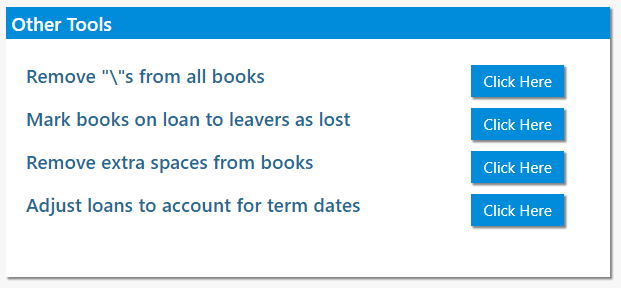
Other tools include Remove “\”s from all books and Mark books on loan to leavers as lost.
Tasks
- From the Catalogue, edit a book to include an error in the author name. Use the Data Clean Up Tools to correct this error
- Use the tool to change all locations to ‘School Library’ where it is currently ‘School’
- Use the Bulk Edit Loans tool to change the loan length of student loans
- Move students in one registration group to a different year group