

Librarians can issue reminders to library users about loans and overdue loans. Librarian customers can issue these reminders by generating letters from the system. Librarian+ customers and Librarian customers who have purchased the email add-on can email library users directly from the system.
Read the Customer Help Guide on Reminder Settings.
Read the Customer Help Guide on Email Reminders.
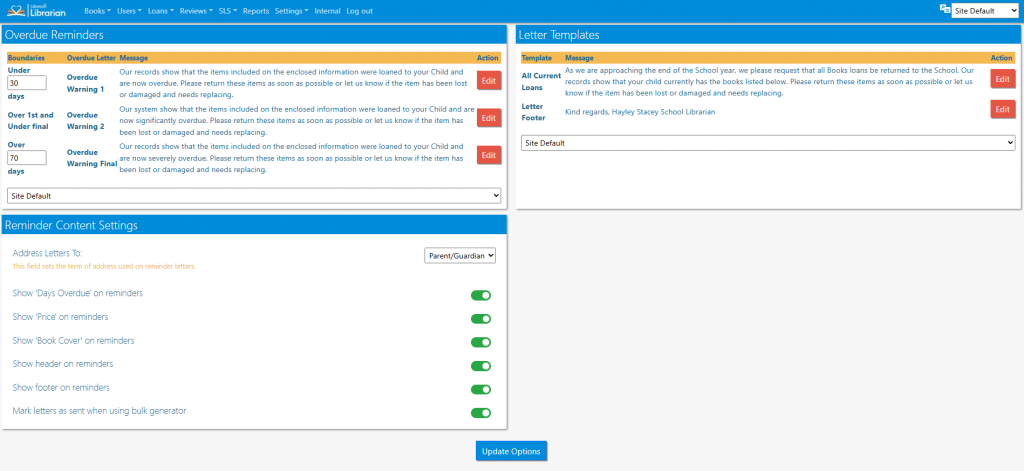
The Overdue Letter Boundaries can be set. Set the number of days up to which reminder letter one is sent, and the number of days over which reminder letter 3 is sent. Reminder letter 2 will be sent if the number of days overdue is between those boundary numbers.
The librarian can choose to show headers, footers and to include the price of replacing the book in the letters.
“Mark letters as sent when using bulk generator” – when active this feature will alter the appearance of the reminder letter buttons on the “Overdue Books” page to indicate the letter being sent.
Book thumbnails can be included on letters.
All content of the letters can be edited by clicking the Edit buttons on the letters.
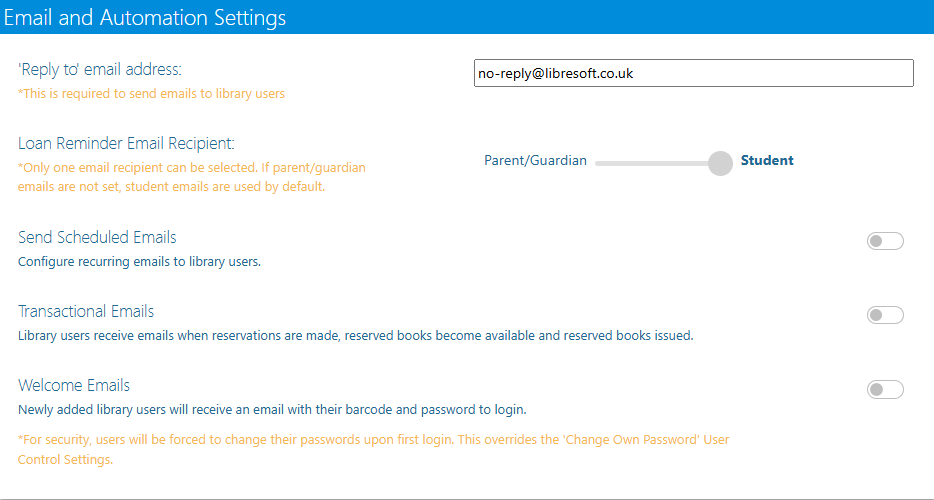
For Librarian+ customers and Librarian customers who have purchased the email add-on, emails reminders can be sent and even scheduled from this page.
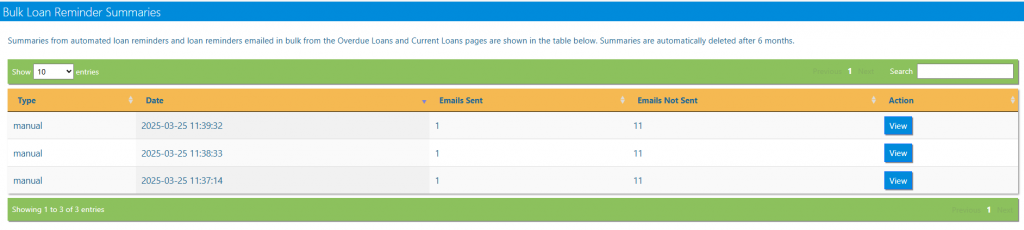
There is also a log that shows emails that have been sent in the past.
Tasks
- From the Overdue Loans screen, issue a first reminder letter to one student. This should open up in a new tab. Keep it open for now
- In Reminder Settings, edit the Overdue Reminder letter text
- Edit the letter footer
- Adjust the Reminder Content Settings for the loan letters
- After adjusting the settings, from the Overdue Loans screen, create a first reminder letter to the same student. Compare this letter to the previous one you created and note the differences